At b00st.com, we handle accounts similarly to platforms like Facebook and Google. When you sign up, you create a personal profile. If you’re a lone wolf, your personal profile is all you need, and every campaign you run will appear there chronologically.
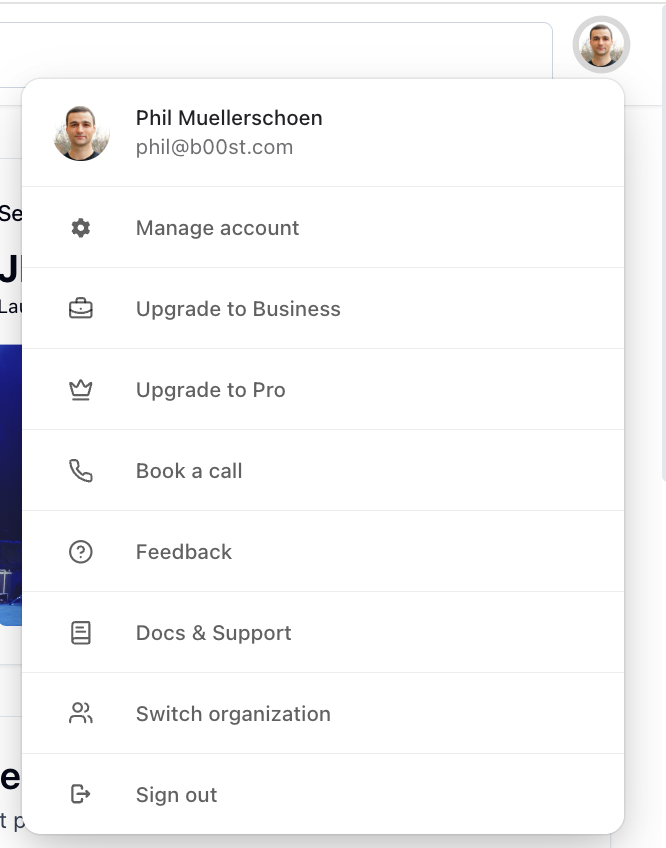
If you’re part of a company or team, we recommend setting up Organizations, our version of teams, and sharing access with whoever needs it. This can be set up at the artist, label, venue group, or any other level that makes sense.
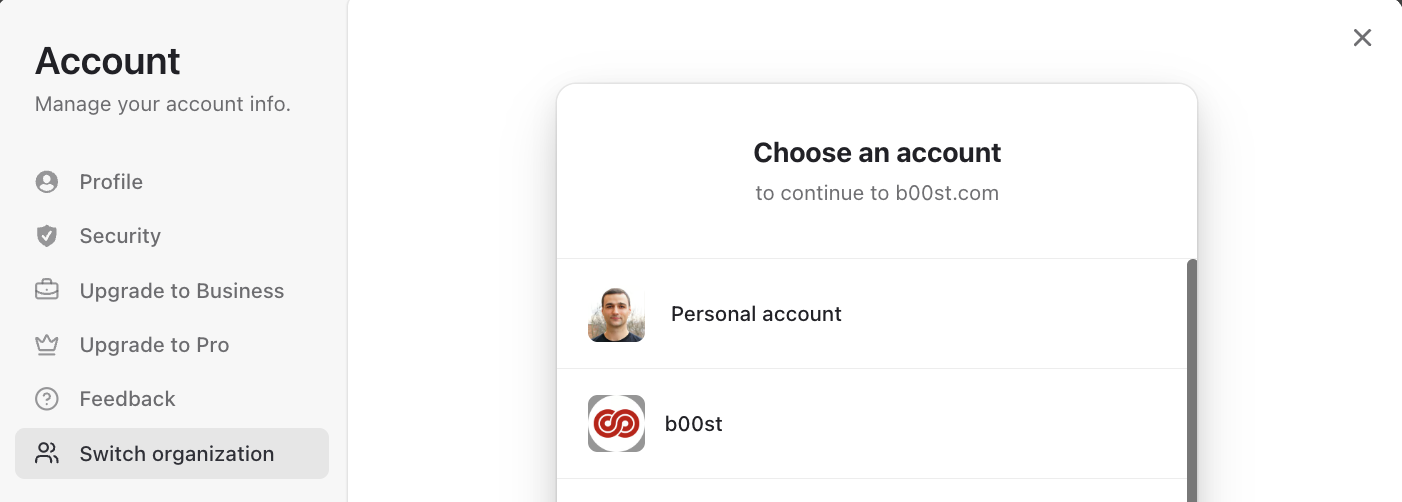
To navigate to the Organization menu, select “Switch Organization” from the menu. At the bottom of the dropdown, you’ll see the option to create a new Organization. If you want us to group existing campaigns into an Organization, just let us know. Otherwise, make sure you’re in the correct Organization before submitting a campaign.
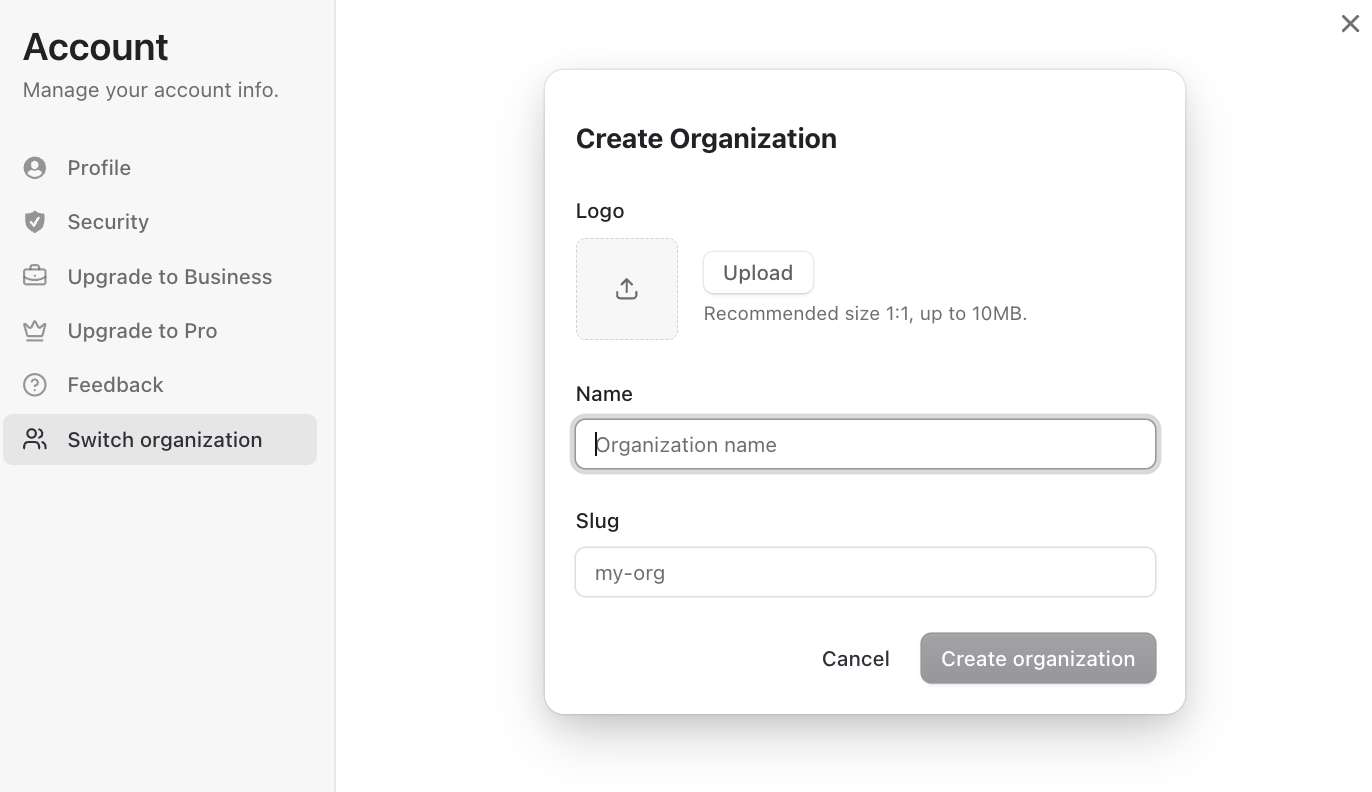
Pro Tip: Create the Organization and hit save first. Then go back and edit it to add a profile photo.
Once you’re inside an Organization, you’ll only see that Organization’s campaigns.
To see which Organization or profile you’re currently in, check the top right. If you’re in an Organization, you’ll see a second profile underneath. To manage the Organization, click the small grey box underneath.
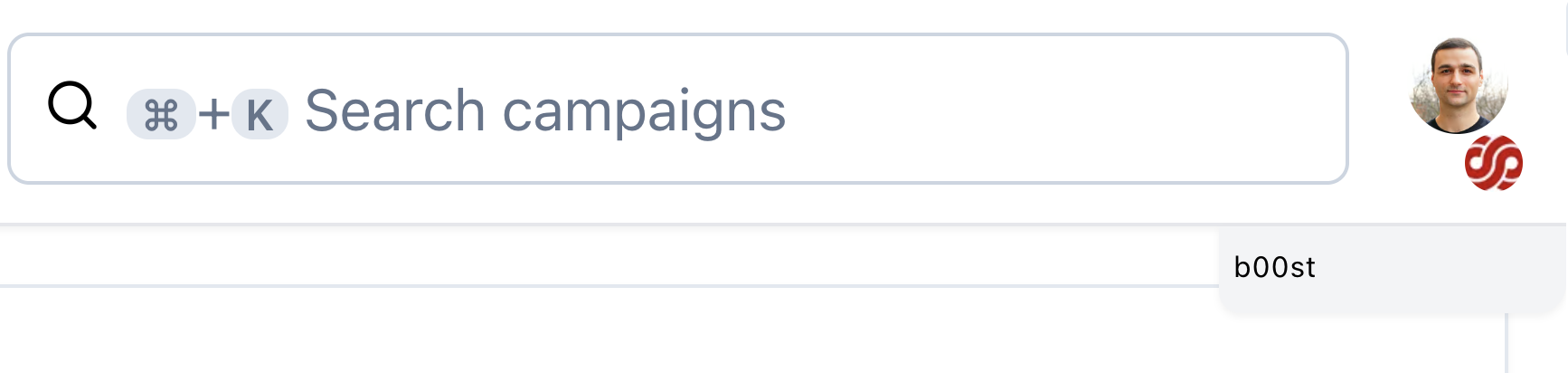
From this menu, you can invite additional members and change the profile image.
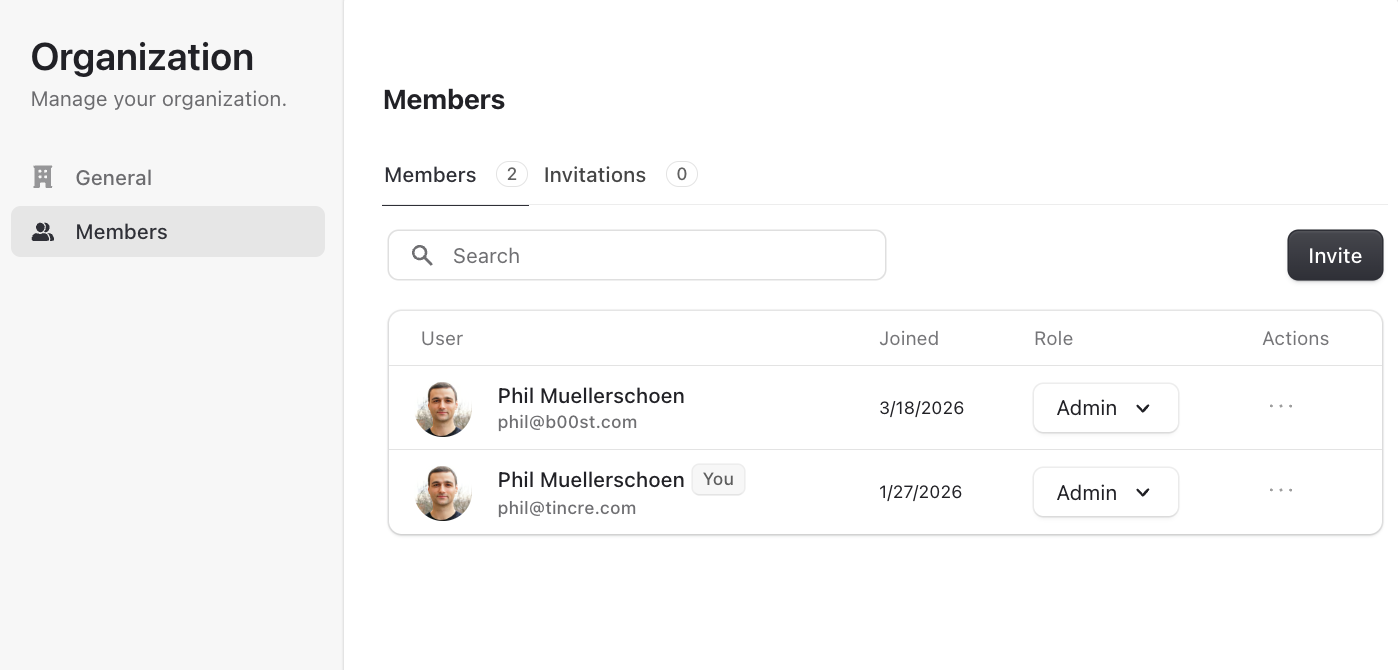
To add members, simply click Invite, enter their email addresses, select their access level (Member or Admin), and send the invitations. They’ll receive an email from us. To make the process even smoother, ask you team to create a b00st account first - link here.